Auto-Record Meetings with Google Calendar Integration
If you have 5+ meetings a day, manually creating each one in MateX gets old fast. The calendar integration fixes this. Connect your Google Calendar once, and you can toggle recording on any upcoming event with a single click.
Setting up the connection
Open the Calendar page from the sidebar. If you haven't connected a calendar yet, you will see a prompt to get started.
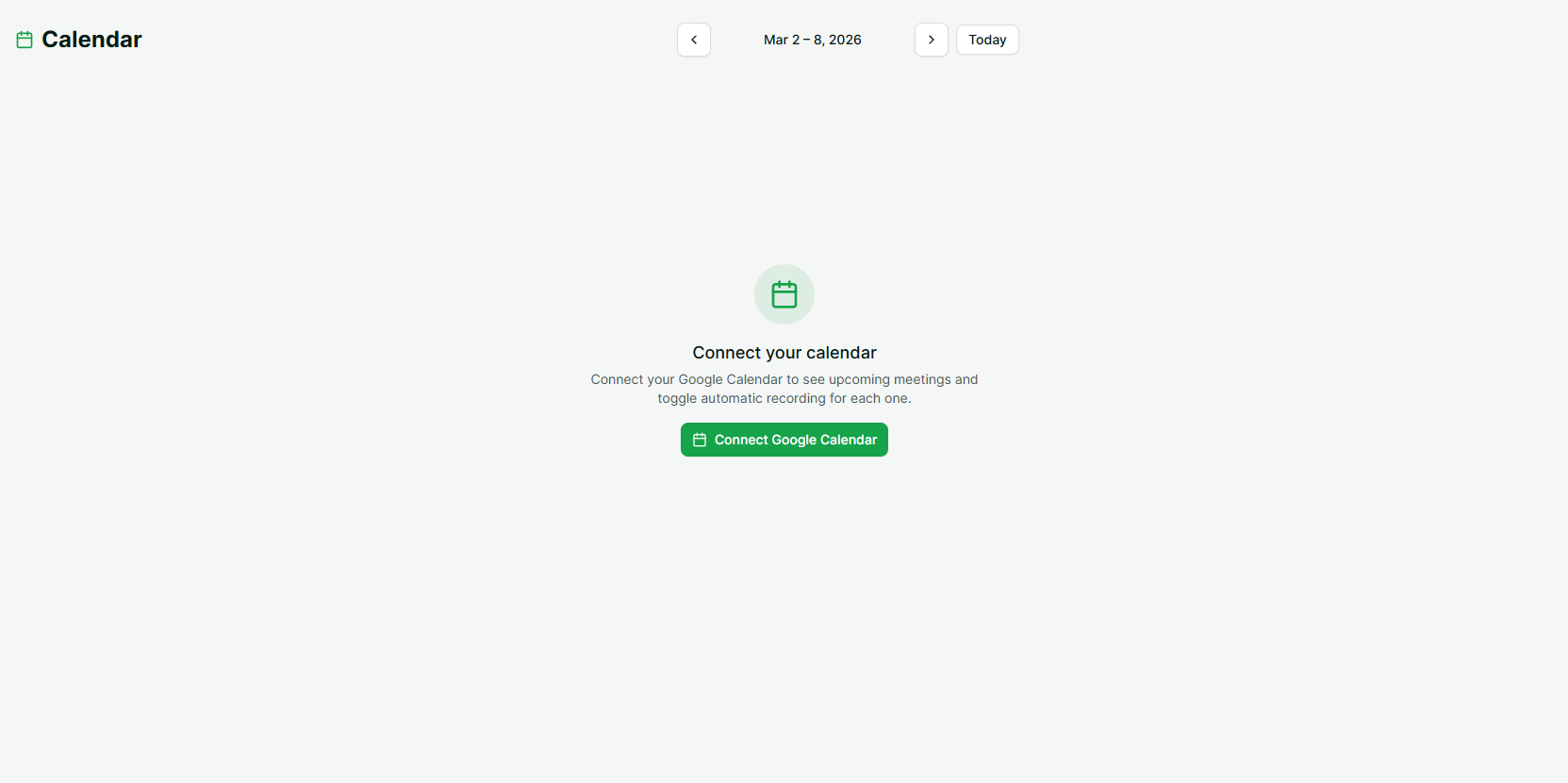
Click Connect Google Calendar. MateX redirects you to Google's authorisation screen where you grant read access to your calendar events. We only read event titles, times, and meeting links. MateX doesn't modify your calendar in any way.
After authorising, you are redirected back to MateX. Your upcoming events load into a week view that shows each day's meetings in a familiar calendar layout.
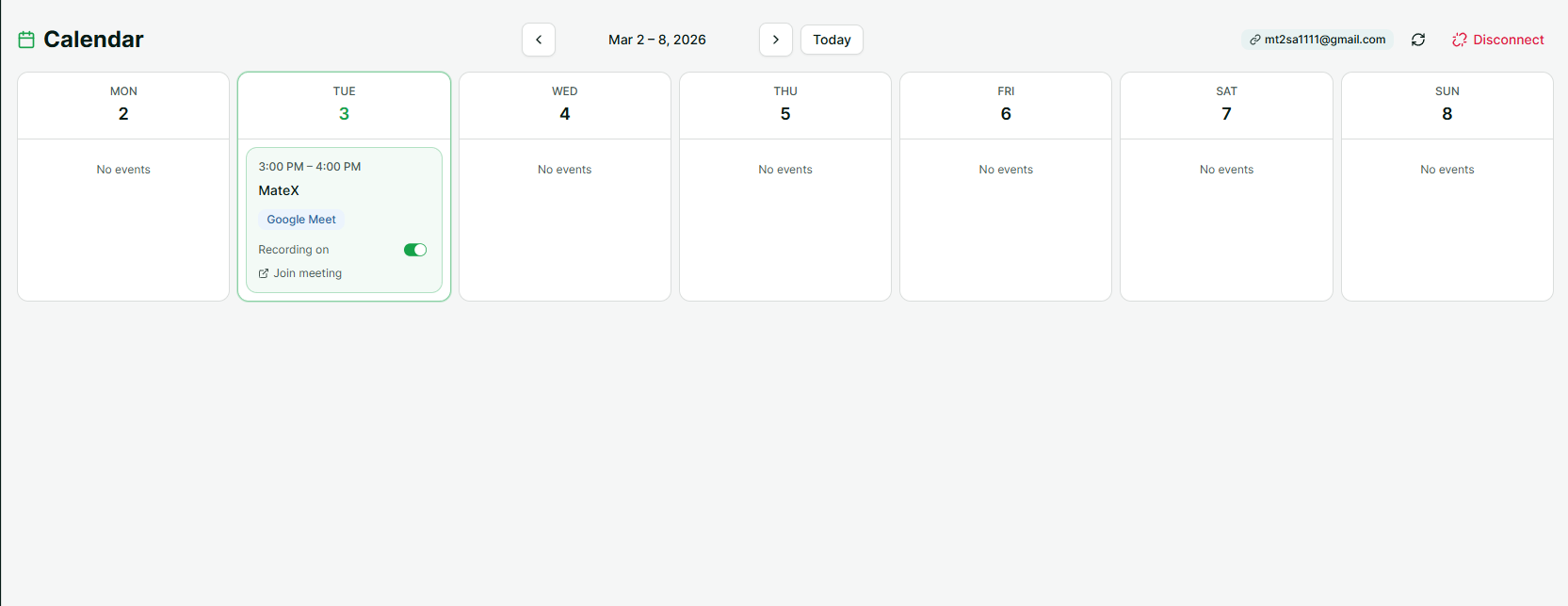
The sync happens automatically. When events are added, updated, or deleted in Google Calendar, MateX picks up the changes through webhooks. No manual refresh needed.
Toggling recording on an event
Each calendar event that has a meeting link shows a record toggle. Events without a meeting link (like reminders or all-day events) don't show the toggle since there's nothing to record.
Click the toggle to schedule a recording bot for that event.
- Green toggle = recording is on. A bot will join when the meeting starts.
- Grey toggle = recording is off. No bot will be sent.
You can flip the toggle as many times as you want before the meeting starts. Changed your mind about recording the 1:1? Just click it off.
What happens when the meeting starts
At the scheduled time, MateX sends a recording bot to the meeting link. From this point, everything works the same as a manually created meeting:
- The bot joins the call and starts recording audio.
- A real-time transcript streams as people speak.
- When the call ends, MateX generates a high-quality async transcript.
- An AI summary is created automatically.
The recorded meeting shows up in your Meetings page, linked to the original calendar event. You can click into it to see the transcript, listen to the audio, read the summary, or ask questions with Ask AI.
Managing your calendar
A few things to know about the ongoing connection:
Events sync automatically. New events, time changes, and cancellations in Google Calendar are reflected in MateX within minutes.
Recurring meetings work. Each instance of a recurring event shows up individually in the week view. You can toggle recording per-instance, so you might record the Monday standup but skip the Friday one.
Disconnecting is clean. If you want to remove the integration, go to the Calendar page and click Disconnect. This removes all synced events and the calendar connection. Meetings that were already recorded stay in your Meetings page. Only the calendar link is removed.
Why use calendar integration instead of manual recording?
Three reasons:
You won't forget. Toggle recording once when the meeting is scheduled, and the bot joins automatically. No need to remember to paste a link right before the call.
It's faster at scale. With 20+ meetings a week, the manual approach means opening a dialog and filling out three fields every single time. Calendar integration reduces that to a single toggle click.
Your week is visible. The week view gives you an overview of all your upcoming meetings in one place. You can see at a glance which ones are being recorded and which ones aren't.
If you regularly have meetings on Google Meet, Zoom, or Teams, calendar integration is the setup you want. Connect once and let MateX handle the rest.