How to Use Ask AI to Query Your Meeting Transcripts
You just finished a 40-minute product meeting and your manager asks: "What did the team decide about the API migration?" Instead of scrubbing through the transcript line by line, you type that question into MateX's Ask AI and get an answer in seconds.
Ask AI is a Q&A assistant built into MateX. It reads your meeting transcripts and answers questions in plain language. This guide covers both ways to use it and how to get the best results.
Two ways to use Ask AI
MateX gives you two entry points depending on what you need.
1. Quick chat from a meeting page
On any meeting detail page, look for the Ask AI button in the summary panel header. Clicking it opens a side panel that slides in from the right.
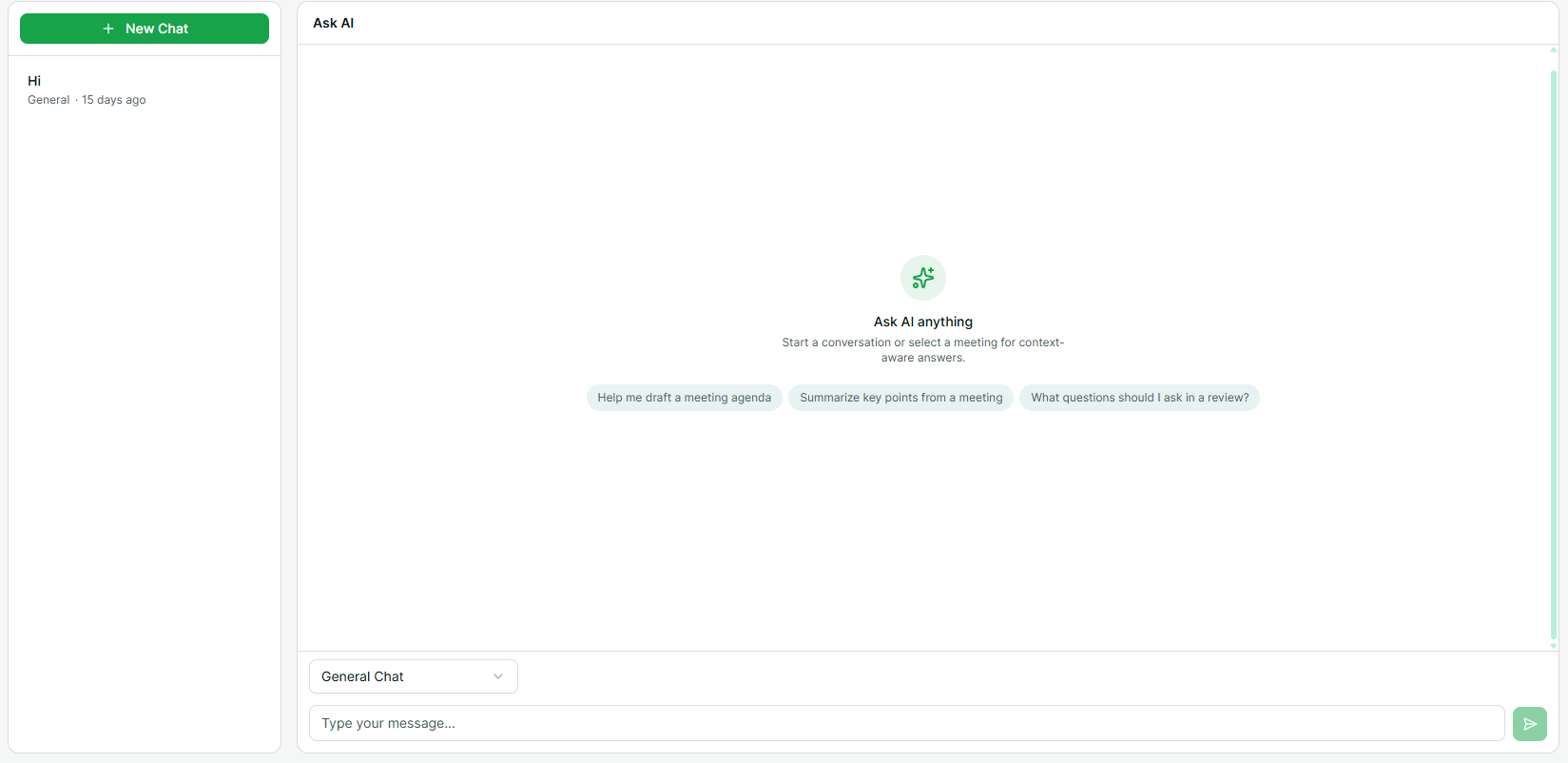
This is great for quick questions while you are reviewing a specific meeting. The panel stays open alongside the summary and transcript, so you can cross-reference.
Type a question and hit send. The AI streams its response in real time, pulling relevant sections from that meeting's transcript.
2. Dedicated Ask AI page
For longer research sessions, open the Ask AI page from the sidebar. This is a full-page chat interface.
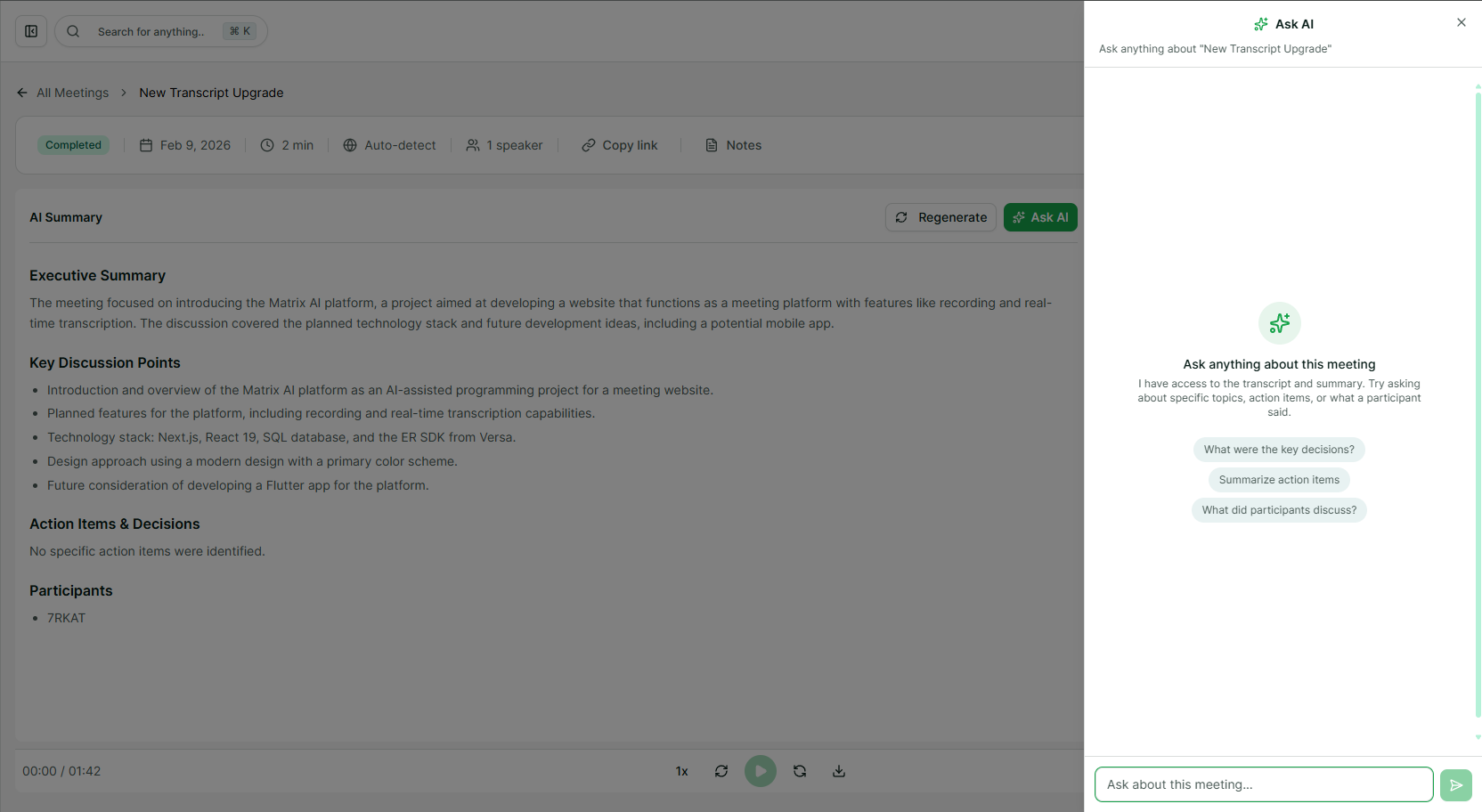
The page has three parts:
- Conversation sidebar (left on desktop, accessible via menu on mobile) — Lists all your saved conversations. Each conversation is stored permanently, so you can come back to it days later.
- Chat area (center) — Where you type questions and read responses.
- Meeting selector (top) — Optionally scope your conversation to a specific meeting. Select one and the AI will only search that meeting's transcript. Leave it empty for a general conversation.
You can create as many conversations as you want. Each one is independent with its own chat history.
What kind of questions work well
Ask AI is best at answering specific questions about what was discussed in a meeting. Some examples:
Factual lookups:
- "What date did they say the launch is?"
- "How much budget was allocated for Q3?"
- "Who is the new point of contact for the vendor?"
Summaries of specific topics:
- "Summarise what was said about the redesign"
- "What were all the concerns raised about the migration?"
- "Give me everything that was discussed about hiring"
Action items and decisions:
- "What action items came out of this meeting?"
- "Did the team agree on a deadline?"
- "What did Alex commit to doing?"
The AI searches the transcript for the most relevant sections before generating its answer. It's not guessing. Every response is grounded in what was actually said during the meeting.
Suggestion chips
Not sure what to ask? MateX shows suggestion chips above the input field when you start a new conversation. These are pre-written questions like:
- "What were the key decisions?"
- "List all action items"
- "Summarise the main discussion points"
Click any chip to send it as your first message. This is useful when you want a quick overview without thinking about what to type.
How it works behind the scenes
When you ask your first question about a meeting, MateX does some one-time setup:
- The full transcript is broken into small, overlapping chunks.
- Each chunk is converted into a numerical representation (called an embedding) and stored in a vector database.
- When you ask a question, your question is also converted into an embedding.
- The system finds the transcript chunks that are most similar to your question.
- Those chunks are sent as context to the AI model, which generates an answer based on the actual transcript text.
This approach is called Retrieval-Augmented Generation (RAG). The practical benefit: the AI doesn't make things up. If it can't find something in the transcript, it tells you instead of inventing an answer.
The first question for a new meeting takes a second or two longer because of the embedding step. After that, responses are fast because the embeddings are cached.
Conversation limits
Each conversation supports up to 50 exchanges. One exchange = one question and one answer. When you hit the limit, start a new conversation from the sidebar. Your old conversations are still accessible.
Tips for better answers
Be specific. "What happened in the meeting?" will get a generic response. "What did the team decide about the database migration timeline?" gets a targeted one.
Reference names. If you know who said something, mention them: "What did Jamie say about the budget?" This helps the AI narrow down the right transcript section.
Follow up. Ask AI remembers the current conversation context. If it gives you a summary, you can follow up with "Can you expand on the second point?" without repeating yourself.
Use the meeting selector. On the Ask AI page, scoping to a specific meeting gives much better results than a general conversation. The AI knows exactly which transcript to search.
Ask AI turns a passive wall of transcript text into something you can actually interact with. Try it after your next meeting and see how much time it saves compared to manually searching.